Installation
This resource is provided as a .zip file containing an Ignition Gateway backup .gwbk file, as well as individual project and tag files. Using the .gwbk file is the simplest way to install the OEE Resource, but it will overwrite your existing Gateway. If you do not want to overwrite your existing Gateway with this backup, refer to the Advanced Install Instructions.
-
Make sure Ignition is installed on your machine. If it needs to be installed, follow the Ignition installation instructions.
-
Confirm the Ignition Gateway has at least 2GB memory allocated. If not, follow the Gateway Configuration File instructions.
-
Download the
.zipfile from the Launchpad OEE Exchange page. Unzip the file to reveal the contents.launchpad_oee.1.0.0.zip
├─ MANIFEST
├─ README.md
├─ Configuration
│ └─ launchpad-oee-gateway.gwbk
├─ Projects
│ └─ launchpad-oee.zip
└─ Tags
├─ launchpad-oee-tags.json
└─ launchpad-oee-udt.json -
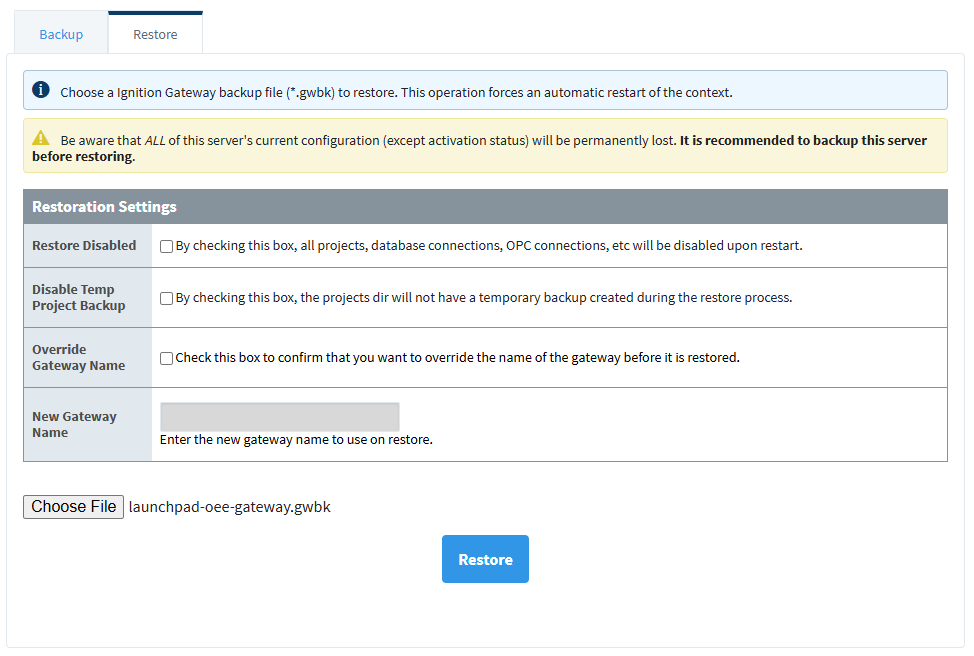
Restore the provided
launchpad-oee-gateway.gwbkfile from the Configuration folder through the Gateway Webpage. Refer to the Ignition User Manual detailed restore instructions for more information.It is recommended to backup your server before restoring a Gateway backup as the process will replace your server's current configuration.
-
Once the backup has been restored, navigate to localhost:8088/data/perspective/client/launchpad-oee/settings. If your Gateway is not local to your machine, replace
localhostwith the IP address of your remote machine. -
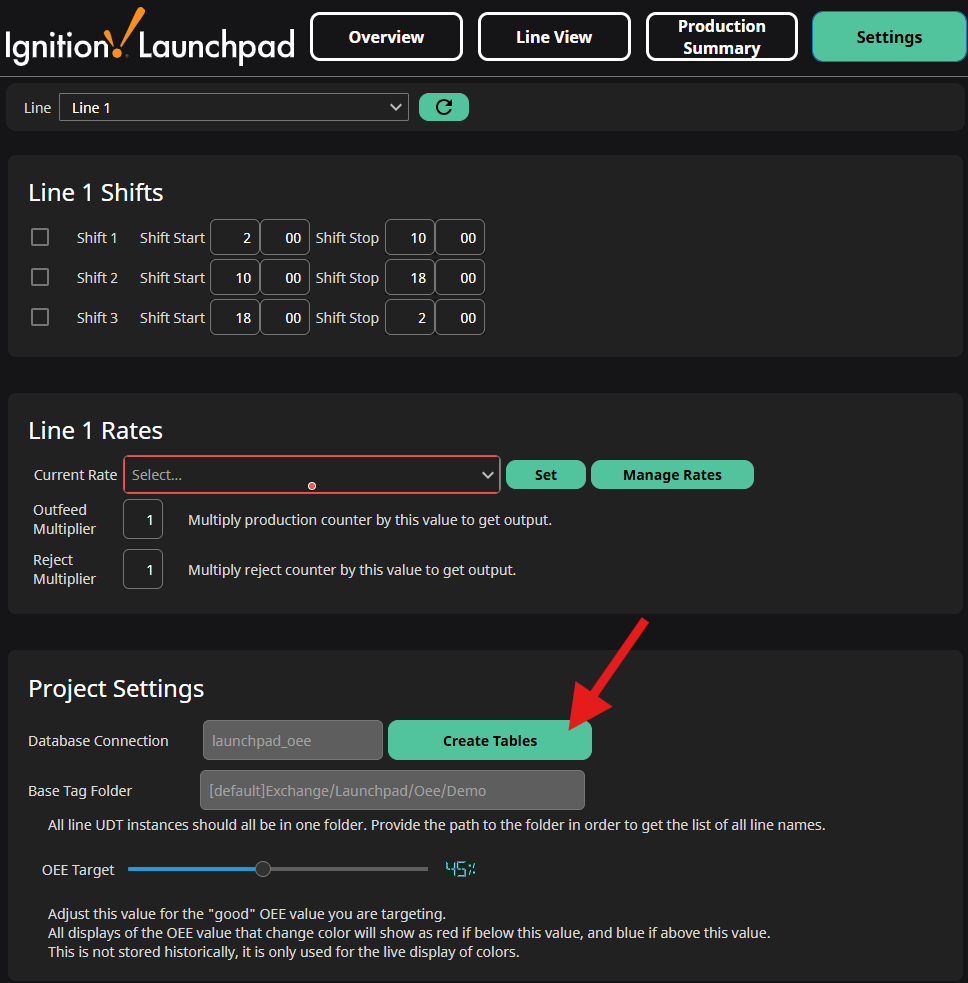
The Settings screen allows you to control the line shift schedule and production rates. This, along with setting up your own lines, will be covered in more detail in the Setup section. For now, we need database tables to start using the project.
-
Click Create Tables to create the tables and initialize the demo.
-
Once tables are created, click the Refresh
 icon next to the line selection.
-