Target Rate
Each line must have a target rate in order to perform the OEE and production calculations against. By default, a rate of 15 units/minute is included, but you can set up as many rates as you wish to match your actual use case. These rates are all stored in a database table and can be shared between different lines. Line rates are configured on the Settings screen.
Setting Current Rate
The current target rate represents the ideal number of units that can be produced per minute. This will be used to calculate target production count and OEE Performance.
To change the current line rate:
-
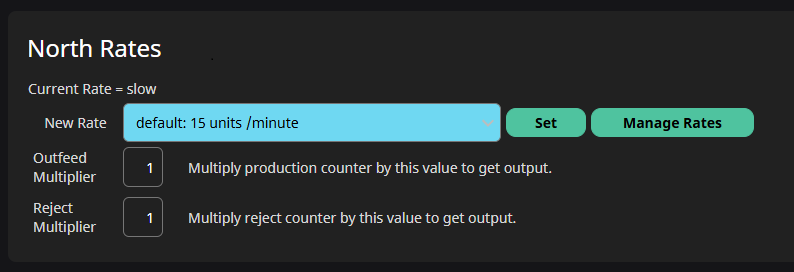
Select a rate from the New Rate dropdown on the Settings screen.
- The name of the Current rate will show above the dropdown (in this example,
Current Rate = slow). - If the selected new rate is different than the current rate, the dropdown will highlight blue.
- If the selected new rate is the same as the current rate, the dropdown will not highlight.
- The name of the Current rate will show above the dropdown (in this example,
-
Select the desired new rate and click the Set button.
- The current rate label will disappear and the dropdown will no longer be highlighted.
Rate Management
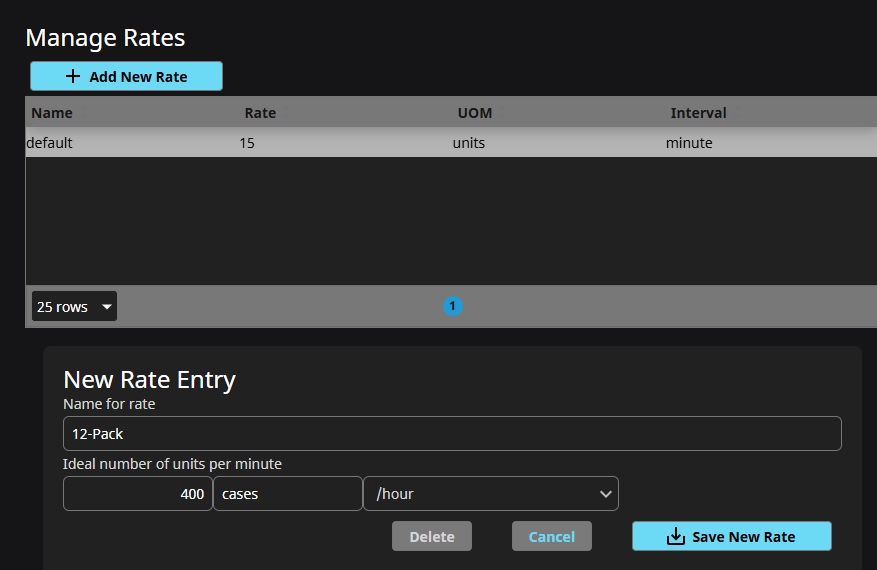
Click the Manage Rates button to open the Rate Manager. Existing rates will be listed in the table on the page, so when you first open the Rate Manager you will only see the default rate. Any rate can be edited from here, but they will not be updated on any lines until they are selected and saved on the Settings screen.
The list of rates is shared by all lines. Take care not to overwrite rates that you don't mean to, as there is no undo button.
Adding a New Rate
- Click the Add New Rate button and fill in the rate name, target rate, and the unit of measure.
- Select hour or minute for the time interval.
- Then, click Save New Rate to add the rate to the list.
Editing a Rate
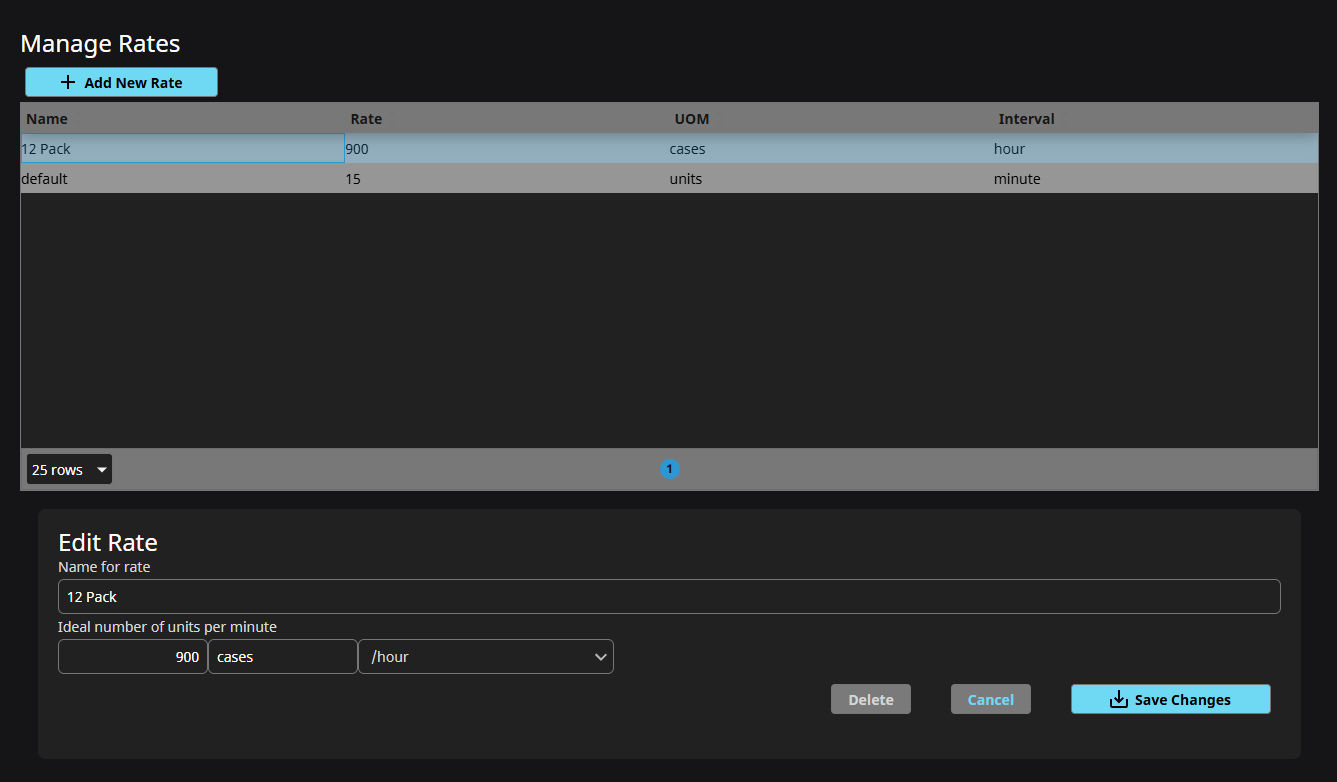
Select any row in the table to begin editing an existing rate. Click Save Changes after making edits. Clicking cancel will undo any changes.
Deleting a rate
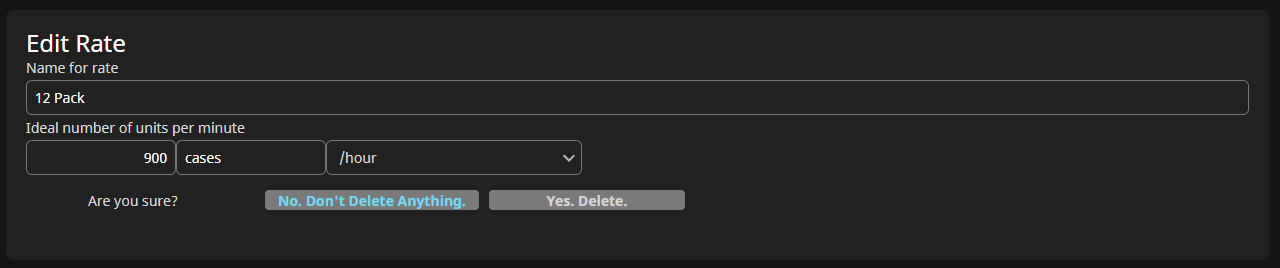
Select any row in the table to access the selected rate's details. Click Delete, and then confirm the deletion.
Outfeed and Reject Multipliers
The outfeed multiplier is used to calculate the line production count based on the PLC counter. For example, if we have a case counter, but we want to base OEE on the number of bottles per minute, we would use the case quantity as the outfeed multiplier. If there are 12 bottles in a case, we would set the outfeed multiplier to 12. The reject counter works in a similar fashion.
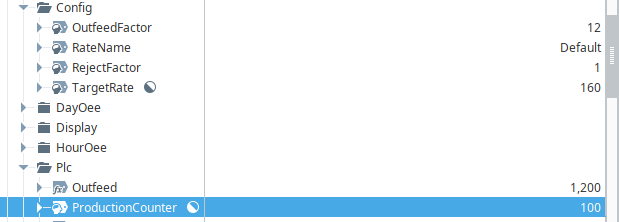
Set the outfeed and reject multipliers as needed. These values are stored within the LineConfig UDT > Config folder as OutfeedFactor and RejectFactor tags. If you do not configure these tags, they will default to 1 so that they do not impact your production counts.
In the example shown below, the outfeed multiplier OutfeedFactor tag has been set to 12, so the Outfeed tag value shows 1,200 when the ProductionCounter tag value is 100.